
e-Invoicing Spain: VERI*FACTU 🇪🇸
Who this is for: The finance or accounting contact at your organisation responsible for invoicing in Spain. What it covers: How the VERI*FACTU integration works in the Lavanda PMS and the steps to activate it on your workspace.
Our VERI*FACTU integration ensures invoices issued from Lavanda are compliant with Spain’s certified billing software regulation (RD 1007/2023). Every invoice, credit note and correction is chained and submitted to the AEAT in real time, with a QR code and verification details applied to the invoice document. Delivered in partnership with Invopop, a registered VERI*FACTU provider.
VERI*FACTU and SII are mutually exclusive under Spanish legislation. If your entity already reports to the Spanish Tax Agency (AEAT) through SII, see e-Invoicing Spain: SII.
1. How the integration works
Section titled “1. How the integration works”Documents submitted to the AEAT
Section titled “Documents submitted to the AEAT”| Document type | Submitted to the AEAT | QR code on the document |
|---|---|---|
| Invoice | Yes | Yes |
| Credit note | Yes | Yes |
| Corrective invoice | Yes | Yes |
| Charge note | No | No |
| Credit charge note | No | No |
| Corrective charge note | No | No |
Each submitted document is chained to the previous record and sent to the AEAT at the moment it is issued.
QR code and verification
Section titled “QR code and verification”Invoices, credit notes and corrective invoices carry a QR code. When the invoice recipient scans it, they are redirected to the AEAT website, where they can confirm:
- Invoice issuer NIF
- Document number
- Issuance date
- Amount (Incl. VAT)
Workspaces using charge notes
Section titled “Workspaces using charge notes”For workspaces configured with charge notes, credit charge notes and corrective charge notes, the VERI*FACTU integration does not submit these document types to the AEAT.
What changes in the PMS once VERI*FACTU is enabled
Section titled “What changes in the PMS once VERI*FACTU is enabled”We have extended the set of validations performed before a document moves from Draft to Issued:
| Validation | Fields checked |
|---|---|
| Recipient identity | Guest name, Document type and Document ID (DNI/NIE). The Document ID and name are validated together against AEAT records. |
| Nationality | Nationality of the guest, used to determine whether a DNI is mandatory. |
| Billing address | Address, City, Postcode, Country |
If a validation fails, the document stays in Draft and one of the messages below is shown.
Error messages when issuing
Section titled “Error messages when issuing”| Toast message | Retryable |
|---|---|
| Couldn’t reach the e-invoicing provider. Nothing was issued — please try again. | Yes |
| The recipient’s tax ID couldn’t be verified with the Spanish Tax Agency (AEAT). Check that the tax ID and name match the recipient’s AEAT registration, then try again. | No |
| The recipient’s tax ID (NIF) format or checksum is invalid. Check the tax ID and try again. | No |
| The invoice data failed e-invoicing validation. Review the invoice details and try again. | No |
| Invoice cannot be issued | No |
A retryable message can be resolved by pressing Issue again. For any other message, correct the recipient or invoice details before issuing again. If Invoice cannot be issued persists after refreshing your browser and the document is not in Issued status, contact support with the invoice reference.
2. How to activate VERI*FACTU
Section titled “2. How to activate VERI*FACTU”Step 1: Request activation
Section titled “Step 1: Request activation”Raise a support ticket via the PMS chat or reach out to your Account Manager.
Step 2: Share your company details
Section titled “Step 2: Share your company details”Provide the following via the PMS chat or to your Account Manager:
- Workspace name (in the Lavanda PMS)
- Company name
- CIF/NIF (your company Tax ID)
- Company registration address
Step 3: Receive your registration link
Section titled “Step 3: Receive your registration link”Your Account Manager or the support team will send you a URL on the domain verifactu.invopop.com to start the registration process.
Step 4: Complete the registration wizard
Section titled “Step 4: Complete the registration wizard”Open the link and complete the seven steps below.
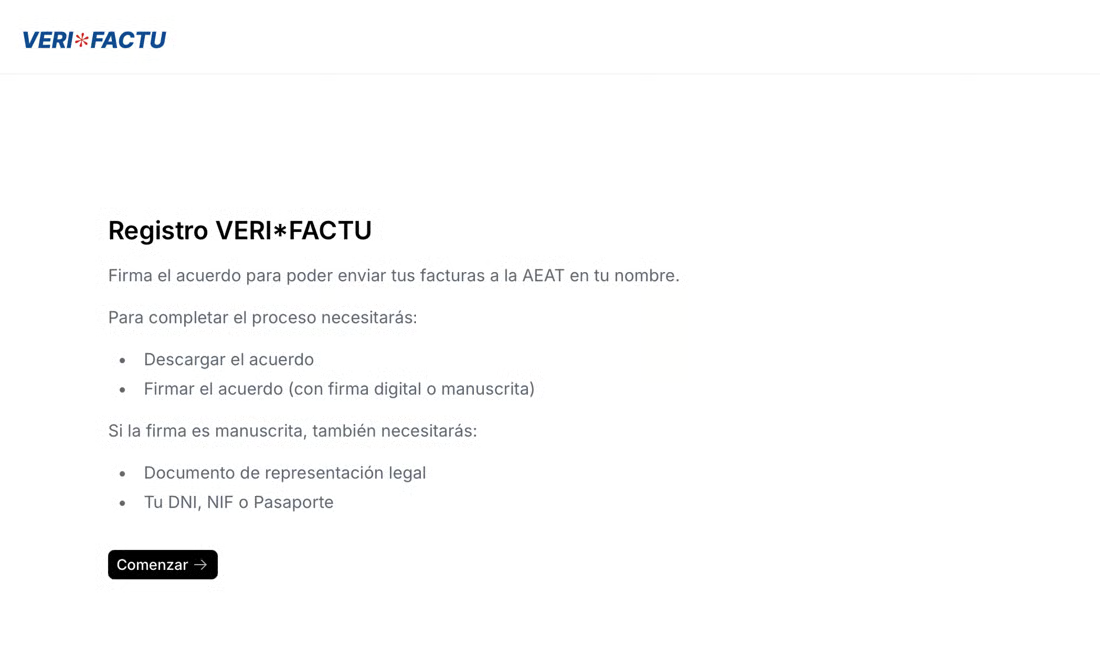
4.1 Welcome screen. Review the list of documents required to complete the registration.
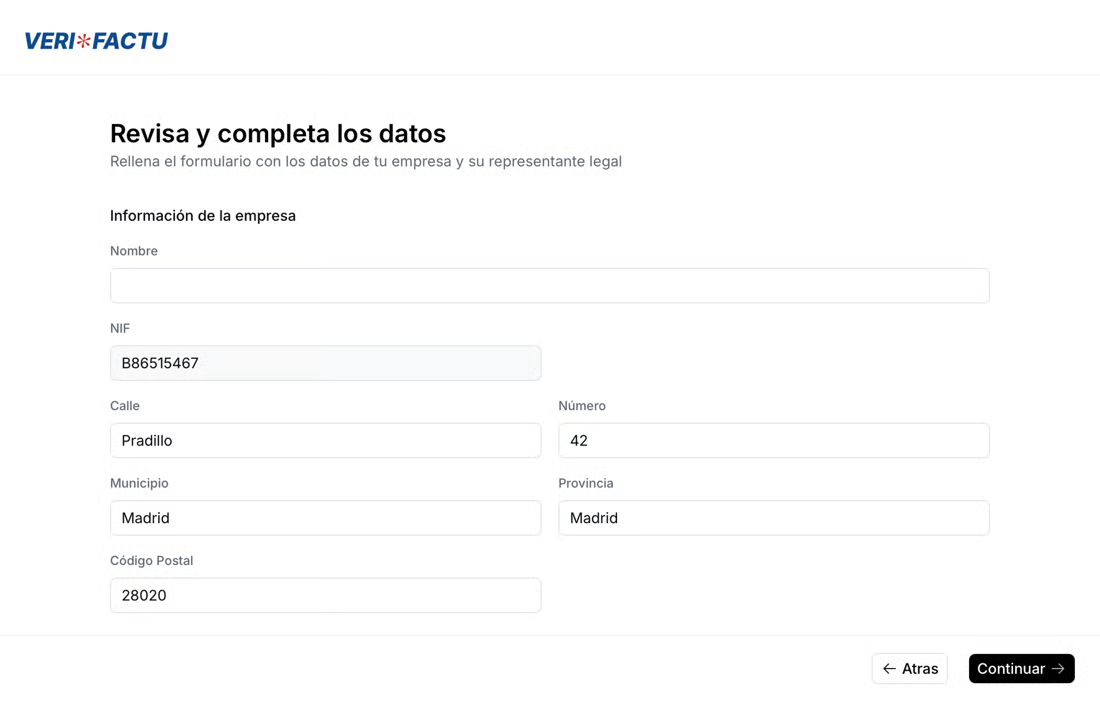
4.2 Information verification. Review and edit the company and legal representative details. Self employed issuers only see the company fields and must enter their name exactly as registered with the AEAT.
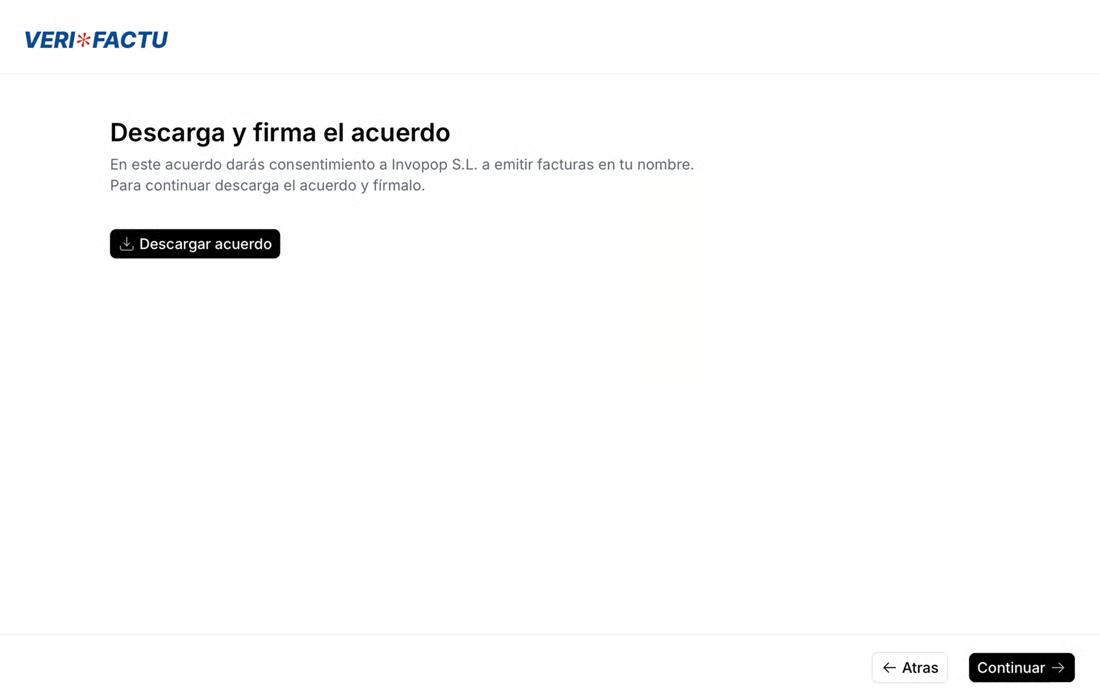
4.3 Download agreement. Download the representation agreement. It is prefilled with the details from the previous step.
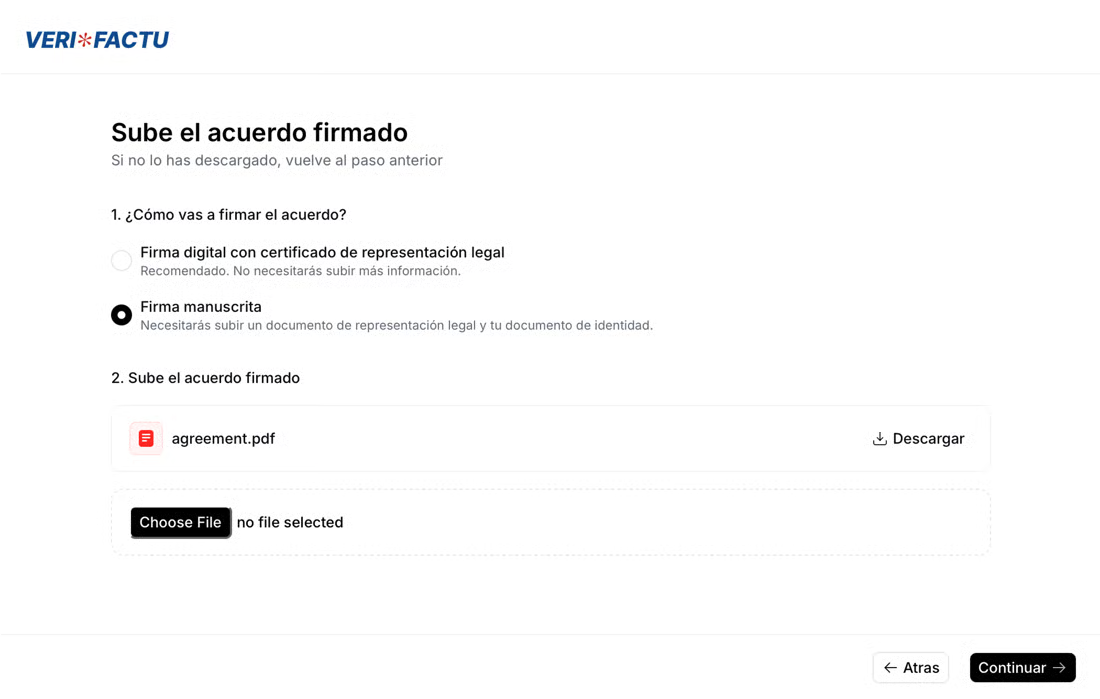
4.4 Upload signed agreement. Select the signature type and upload the signed agreement. If you sign digitally, step 4.5 is skipped.
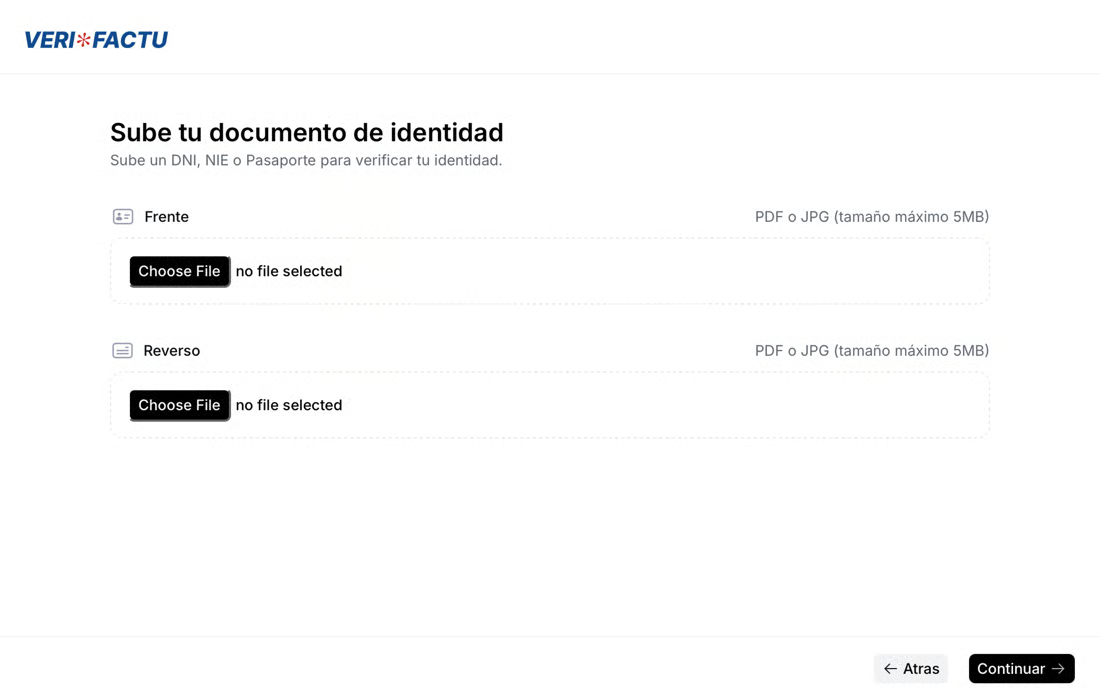
4.5 Upload ID. The legal representative or self employed issuer uploads a scan or clear photo of their ID (JPG or PNG).
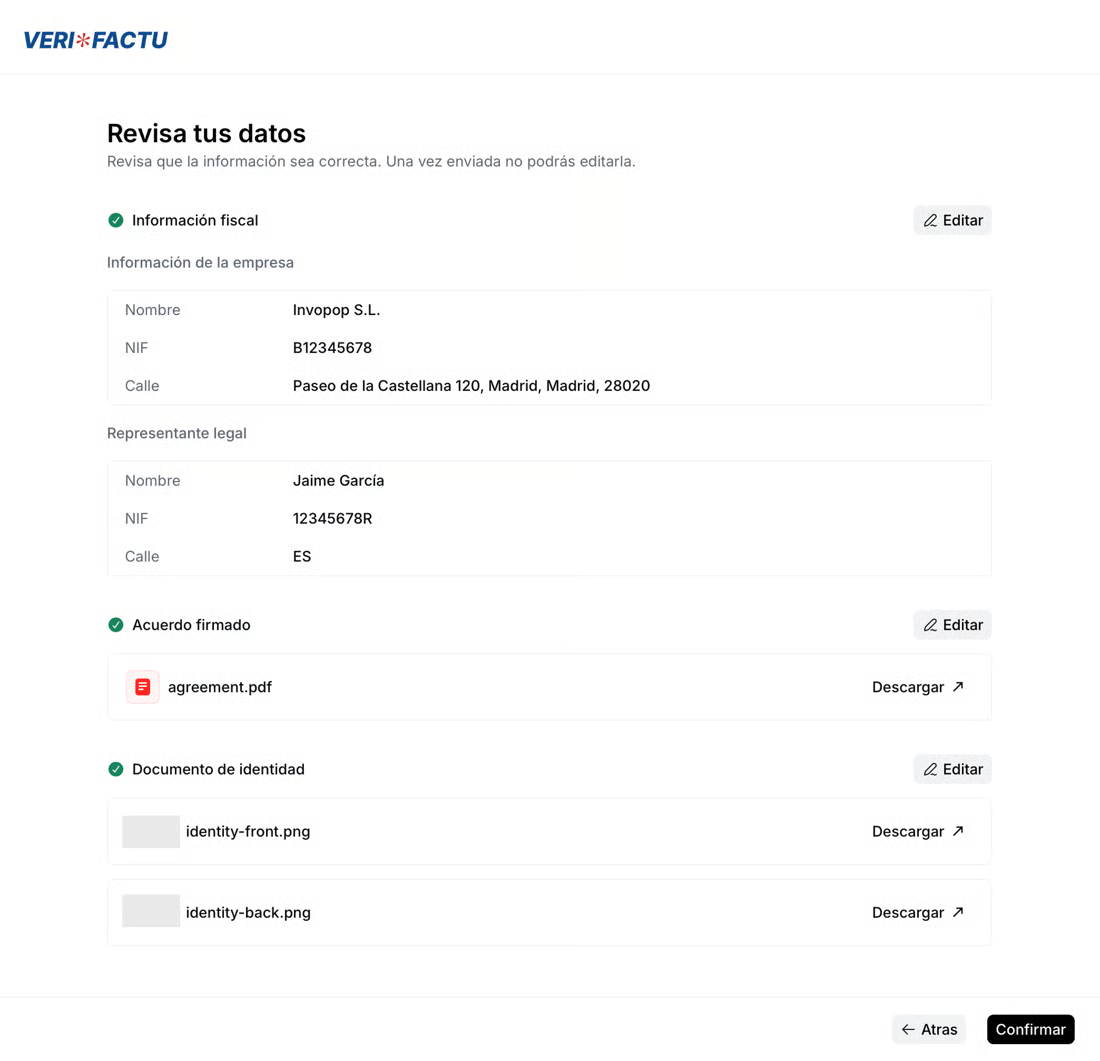
4.6 Review details. Check the summary and edit any field if needed before submitting.
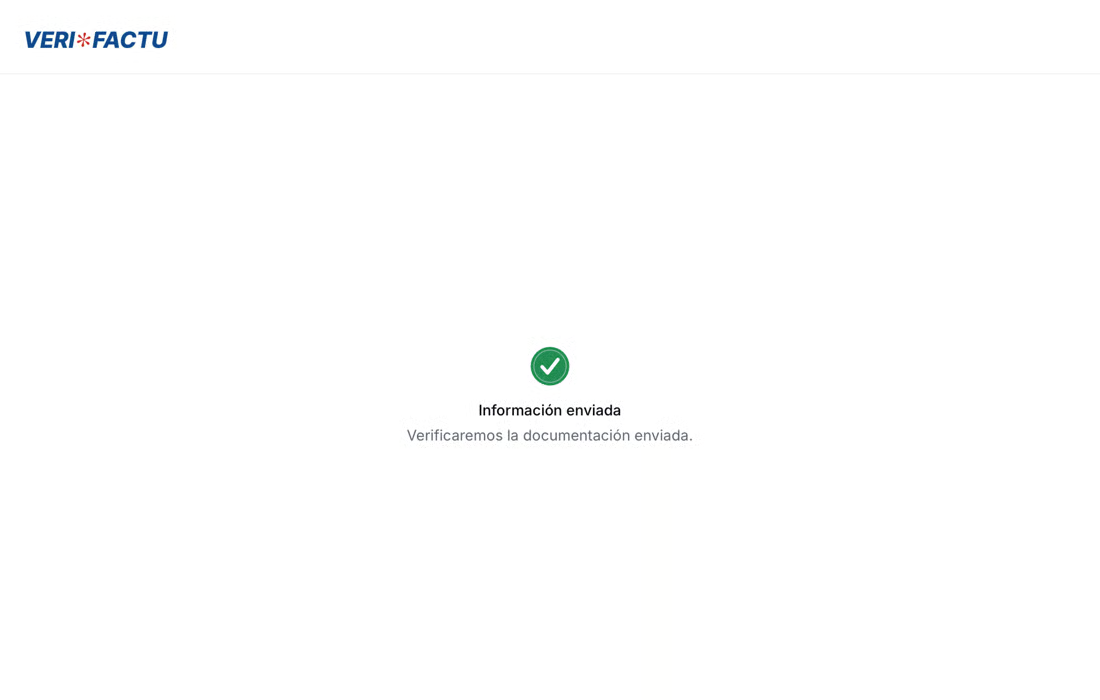
4.7 Confirmation screen. A green checkmark confirms the submission. Documents are verified automatically and the registration is approved immediately unless an issue is found.
Step 5: Confirm back to Lavanda
Section titled “Step 5: Confirm back to Lavanda”Once the registration is complete, let your Account Manager or the support team know via the PMS chat. We will then enable VERI*FACTU on your workspace.
3. Your go live checklist
Section titled “3. Your go live checklist”- Company details shared with Lavanda
- Registration wizard completed on verifactu.invopop.com
- Completion confirmed back to Lavanda
- Guest records hold a valid Document ID, nationality and full billing address
Reference: Invopop VERI*FACTU supplier guide.